Getting Started with Katbot
This quickstart guide will help you make your first API call to Katbot. Follow these steps to get started:
1. Login with Metamask
If you haven't already, its easy to sign up for a free account at Katbot. Make sure you have the MetaMask extension installed in your web browser. Once you have MetaMask set up, go to the Katbot website and click on the "Login with MetaMask" button. Sign the message prompt in MetaMask to authenticate. You will need to be connected to the Arbitrum network in MetaMask.
Press "Confirm" to sign the message and complete the login process.
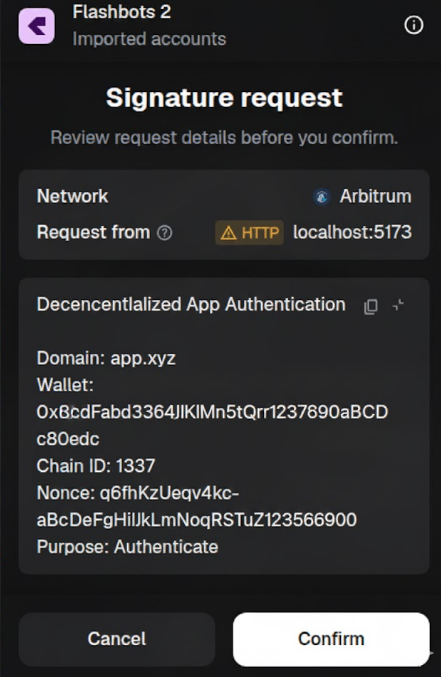
Want to learn more about authentication with Katbot? Check out the Authentication Guide.
2. Request Whitelist Access
The Katbot application is PRE ALPHA. That means that we only want to share the application with users that are willing to provide feedback. Until we launch we are requiring users to be whitelisted. Goto the Authentication Guide for instructions on how to request that your account be whitelisted.
3. Use The "default" Portfolio (paper trading)
Once your account is whitelisted, navigate to the API section in your Katbot dashboard. Make sure the "default" portfolio is chosen.
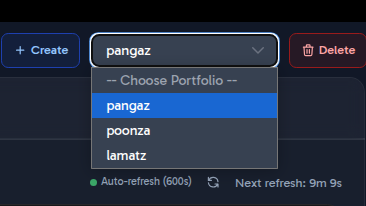
4. Ask Katbot for a Trading Recommendation
Open the Katbot chat dialog (lower right anchored button) and ask Katbot for a trading recommendation. For example, you can type: Katbot, I have a moderate risk tolerance and want to invest $500. What trading pairs do you recommend? See the Recommendations Guide for more example prompts.
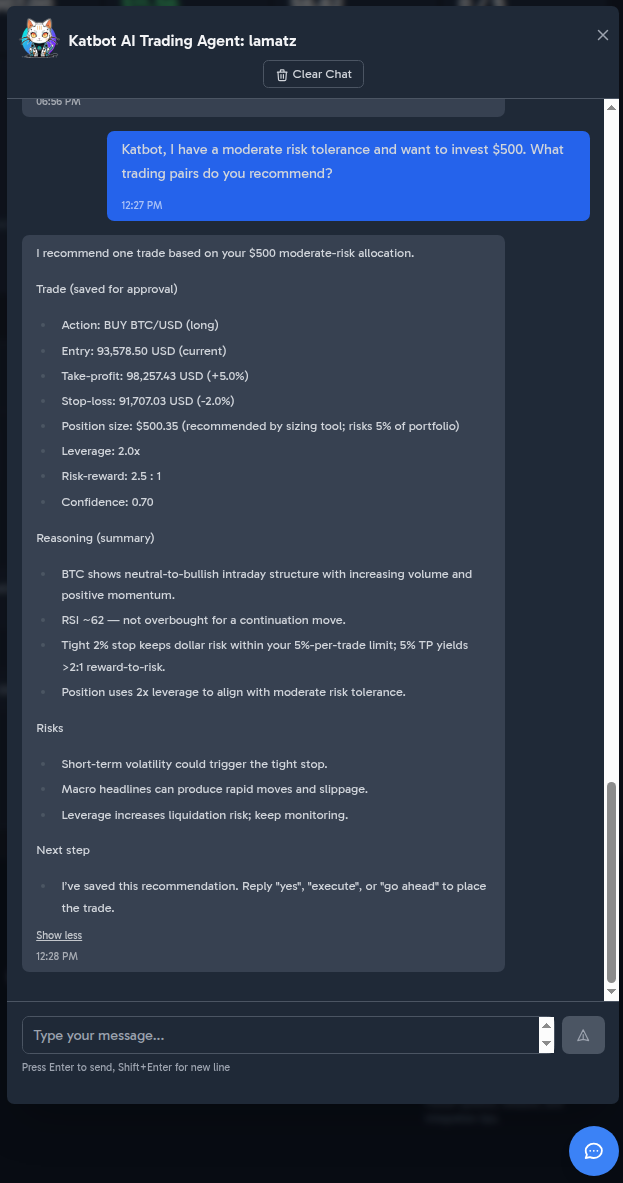
5. Review and Execute the Recommendation
Katbot will provide you with a trading recommendation based on your input. Review the recommendation to approve it click the "Execute Trade" button on the recommendation.
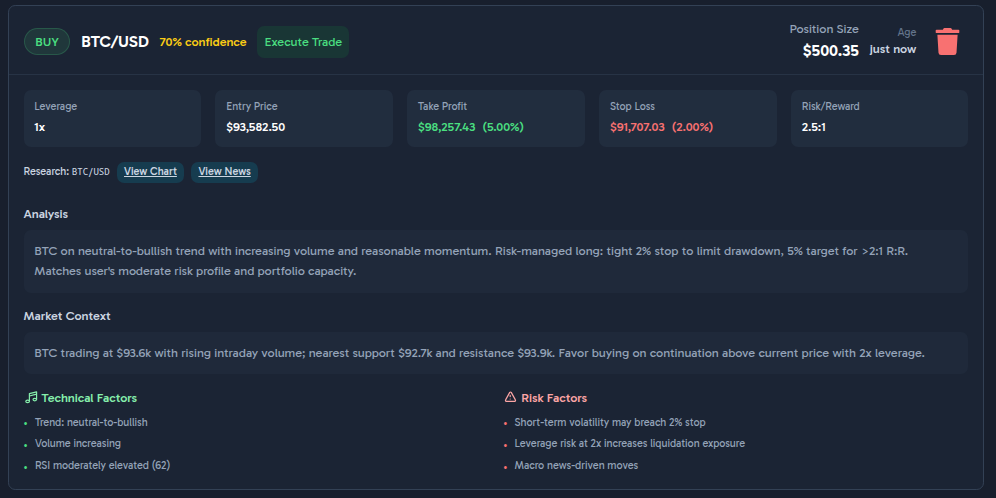
6. Monitor Your Portfolio
After executing the trade, you can monitor your portfolio's performance in the Katbot dashboard. Check back regularly to see how your investments are doing and to receive new recommendations from Katbot.
For more details on managing portfolios, refer to the Managing Portfolios Guide.
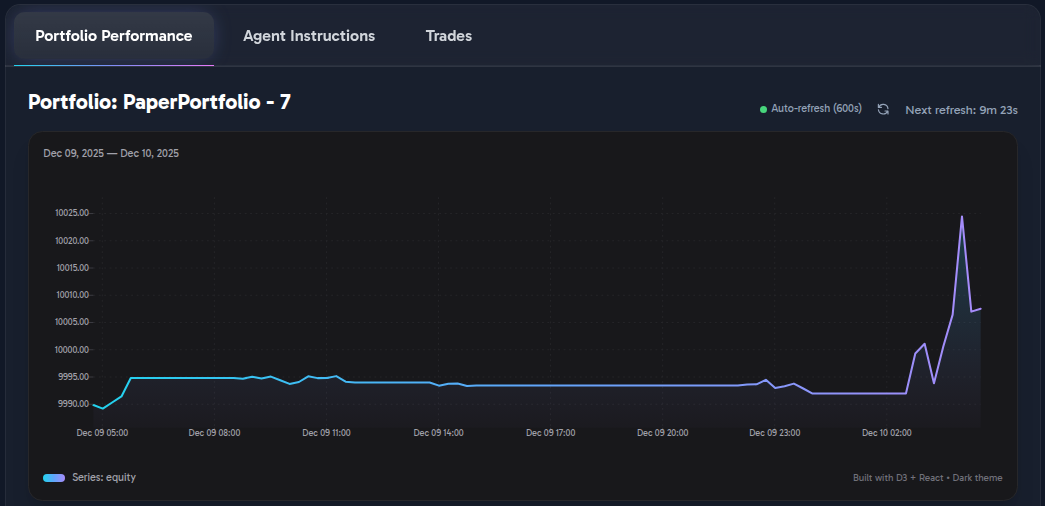
Portfolio Performance Chart
The performance chart provides a visual representation of your portfolio's value over time, allowing you to track gains and losses effectively.
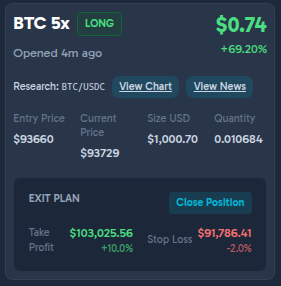
Portfolio Open Positions
The open positions section displays all active trades in your portfolio, including details such as entry price, current price, take-profit, stop-loss, position size, leverage, and unrealized P&L.
Trades History
The trades history section lists all completed trades in your portfolio, providing insights into your trading activity and performance.

Congratulations! You have successfully made your first API call to Katbot and executed a trade based on its recommendation. Explore more features and guides in the Katbot documentation to enhance your trading experience.